How I Built a COVID-19 Dashboard in 10 Minutes Using Streamlit

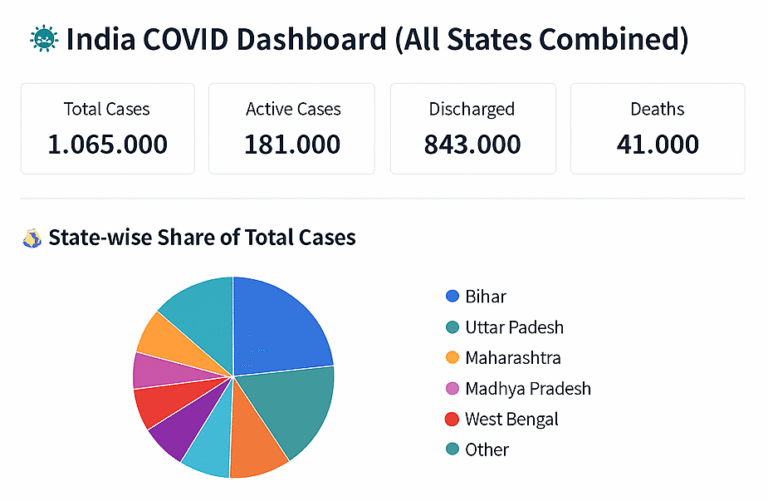
Streamlit is a Python library that lets you build web apps super easily. Think of it as a way to turn your Python scripts into interactive websites without having to learn web development. So imagine you’ve got some data analysis code or a machine learning model, and you want to show it off or let people play around with it. Normally, you’d need to learn HTML, CSS, JavaScript – all that web stuff. With Streamlit, you just write Python, and it handles the web part for you. You can add things like sliders, buttons, file upload boxes, and charts with just a few lines of code. When someone moves a slider or uploads a file, your app automatically updates. It’s pretty neat. The best part is how fast you can go from idea to working app. You write your Python code, add some Streamlit commands, and boom – you’ve got a web app running locally. Want to share it? Deploy it to their free hosting service. It’s become popular with data scientists and anyone doing machine learning because you can quickly create demos of your models or build dashboards to visualize data. No need to bug the web dev team or spend weeks learning React or whatever. The code is surprisingly simple, too – you’re just adding commands like st.slider() or st.chart() to your existing Python code, and Streamlit figures out how to turn that into a web interface. 🛠 Tools & Libraries pip install streamlit pandas plotly Step 1: Prepare Your CSV Data Create a file named covid_data.csv With the following columns: State,Zone,Total Cases,Active,Discharged,Deaths,Active Ratio,Discharge Ratio,Death Ratio,Population Bihar,Red,10000,2000,7500,500,20,75,5,120000000 Delhi,Orange,8000,1000,6500,500,12.5,81.25,6.25,20000000 … Step 2: Create the Streamlit App (app.py) 1. Import the Libraries pythonCopyEditimport streamlit as st import pandas as pd import plotly.express as px 2. Load the CSV Data pythonCopyEditdf = pd.read_csv(“covid_data.csv”) This line reads the covid_data.csv file into a DataFrame called dfSo we can work with it in the app. 3. Page Configuration pythonCopyEditst.set_page_config(page_title=”India COVID Dashboard”, layout=”wide”) st.title(“🦠 India COVID Dashboard (All States Combined)”) 4. Calculate Metrics pythonCopyEdittotal_cases = df[“Total Cases”].sum() active_cases = df[“Active”].sum() discharged = df[“Discharged”].sum() deaths = df[“Deaths”].sum() These lines add up the columns across all rows to get the total national numbers. 5. Show the Metrics in 4 Columns pythonCopyEditcol1, col2, col3, col4 = st.columns(4) col1.metric(“Total Cases”, f”{total_cases:,}”) col2.metric(“Active Cases”, f”{active_cases:,}”) col3.metric(“Discharged”, f”{discharged:,}”) col4.metric(“Deaths”, f”{deaths:,}”) 6. Draw a Pie Chart pythonCopyEditst.subheader(“State-wise Share of Total Cases”) pie = px.pie(df, names=”State”, values=”Total Cases”, title=”Total Cases by State”) st.plotly_chart(pie, use_container_width=True) 7. Draw a Bar Chart pythonCopyEditst.subheader(“State-wise Breakdown of Active, Discharged, and Deaths”) bar = px.bar( df, x=”State”, y=[“Active”, “Discharged”, “Deaths”], barmode=”group”, title=”State-wise Case Category”, height=500 ) st.plotly_chart(bar, use_container_width=True) 8. Optional Data Filter and Table pythonCopyEditwith st.expander(“Show/Filter State-Wise Data”): selected_states = st.multiselect(“Select States to View”, df[“State”].unique(), default=df[“State”].unique()) filtered_df = df[df[“State”].isin(selected_states)] st.dataframe(filtered_df.sort_values(“Total Cases”, ascending=False), use_container_width=True) Step 3: Run the App In your terminal, run: streamlit run app.py Your browser will open the dashboard automatically. on 8501 port http://localhost:8501/ Bonus Ideas Comment below if you like my post

How I Built a COVID-19 Dashboard in 10 Minutes Using Streamlit Read More »