Automation

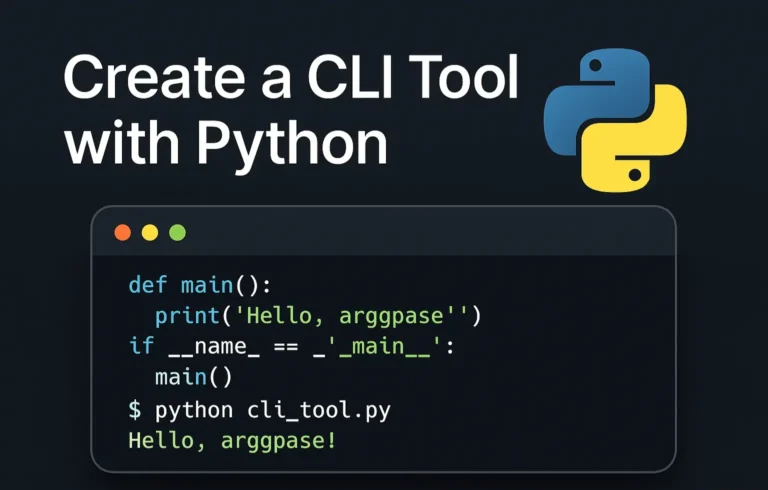
Feature image showing the Python logo and a command-line terminal with the title ‘Create CLI Tool with Python: From Zero to Hero

Create a CLI Tool with Python: From Zero to Hero

Command-line tools are essential for developers—they’re fast, lightweight, and automate repetitive tasks. In this tutorial, we’ll build a File Organizer CLI tool in Python from scratch. By the end, you’ll have a working CLI tool that organizes files by type and is ready to share or package for others. Why Build CLI Tools with Python? Before we dive into the code, it’s important to understand why Python is an excellent choice for building command-line tools. 1. Simplicity and Readability Python’s clean and intuitive syntax allows you to focus on functionality, rather than worrying about complex language constructs. You can write concise, readable code that’s easy to maintain—perfect for small utilities or large projects alike. 2. Rich Ecosystem Python comes with a powerful standard library for file handling, argument parsing, and more. On top of that, third-party packages like Click, Rich, and argparse make building robust and user-friendly CLI tools even easier. 3. Cross-Platform Compatibility Python runs seamlessly on Windows, macOS, and Linux. The same CLI tool you develop on your local machine can be deployed anywhere without major changes—saving you time and headaches. 4. Rapid Development Python is an interpreted language, which means you can write, test, and iterate on your code quickly. This rapid feedback loop is ideal when building CLI tools where functionality and usability matter. Setting Up Your Development Environment First, let’s prepare our folder. I recommend creating a virtual environment to keep dependencies isolated: mkdir my-cli-tool cd my-cli-tool python -m venv venv source venv/bin/activate # On Windows: venv\Scripts\activate Install the essential rich-click we’ll use: pip install click rich I am using click for argument parsing and rich for beautiful terminal output. While Python’s built-in argparse is powerful, click offers a more intuitive approach for complex CLI applications. Building Your First CLI Tool: A File Organizer Let’s create something practical – a tool that organizes files in a directory by their extensions. This example will demonstrate core CLI concepts while solving a real problem. Create a file called file_organizer.py: import os import shutil from pathlib import Path import click from rich.console import Console from rich.table import Table from rich.progress import Progress console = Console() @click.command() @click.argument(‘directory’, type=click.Path(exists=True, file_okay=False, dir_okay=True)) @click.option(‘–dry-run’, is_flag=True, help=’Show what would be done without making changes’) @click.option(‘–verbose’, ‘-v’, is_flag=True, help=’Show detailed output’) def organize_files(directory, dry_run, verbose): “”” Organize files in DIRECTORY by their extensions. Creates subdirectories for each file type and moves files accordingly. “”” directory = Path(directory) if dry_run: console.print(“[yellow]Running in dry-run mode – no changes will be made[/yellow]”) # Scan directory and group files by extension file_groups = {} total_files = 0 for file_path in directory.iterdir(): if file_path.is_file(): extension = file_path.suffix.lower() or ‘no_extension’ if extension not in file_groups: file_groups[extension] = [] file_groups[extension].append(file_path) total_files += 1 if total_files == 0: console.print(“[red]No files found in the specified directory[/red]”) return # Display summary table if verbose or dry_run: table = Table(title=f”Files to organize in {directory}”) table.add_column(“Extension”, style=”cyan”) table.add_column(“Count”, style=”green”) table.add_column(“Files”, style=”white”) for ext, files in file_groups.items(): file_names = “, “.join([f.name for f in files[:3]]) if len(files) > 3: file_names += f” … and {len(files) – 3} more” table.add_row(ext, str(len(files)), file_names) console.print(table) if dry_run: return # Create directories and move files with Progress() as progress: task = progress.add_task(“[green]Organizing files…”, total=total_files) for extension, files in file_groups.items(): # Create directory for this extension ext_dir = directory / extension.lstrip(‘.’) ext_dir.mkdir(exist_ok=True) for file_path in files: destination = ext_dir / file_path.name # Handle naming conflicts counter = 1 while destination.exists(): name_parts = file_path.stem, counter, file_path.suffix destination = ext_dir / f”{name_parts[0]}_{name_parts[1]}{name_parts[2]}” counter += 1 shutil.move(str(file_path), str(destination)) if verbose: console.print(f”[green]Moved[/green] {file_path.name} → {destination}”) progress.advance(task) console.print(f”[bold green]Successfully organized {total_files} files![/bold green]”) if __name__ == ‘__main__’: organize_files() Understanding the Code Structure Let’s break down the key components: my-cli-tool/ │── file_organizer.py # Main CLI code │── text.py # Test file generator │── README.md # Documentation │── setup.py # Installation script │── assets/ │ └── banner.png # Optional banner for README │── venv/ # Local virtual environment Making Your Tool Installable To make your CLI tool easily installable and distributable, create a setup.py file: from setuptools import setup setup( name=”file-organizer”, version=”0.1.0″, py_modules=[“file_organizer”], # because you have file_organizer.py install_requires=[ “click”, “rich”, ], entry_points={ “console_scripts”: [ “file-organizer=file_organizer:organize_files”, ], }, author=”Tarun Kumar”, description=”A Python CLI tool to organize files by extension”, long_description=open(“README.md”).read() if open(“README.md”, “r”, encoding=”utf-8″) else “”, long_description_content_type=”text/markdown”, python_requires=”>=3.8″, ) Install your tool in development mode: pip install -e . Now you can run your tool from anywhere using the organize command! Testing Your CLI Tool Testing CLI applications is more important because it requires special consideration. Here’s how to test your file organizer: import os # Folder where test files will be created TEST_DIR = “test_files” # Make the directory if it doesn’t exist os.makedirs(TEST_DIR, exist_ok=True) # List of test files with different extensions files = [ “document1.pdf”, “document2.pdf”, “image1.jpg”, “image2.jpg”, “image3.png”, “script1.py”, “script2.py”, “archive1.zip”, “archive2.zip”, “notes.txt”, “readme.md” ] # Create empty files for file_name in files: file_path = os.path.join(TEST_DIR, file_name) with open(file_path, “w”) as f: f.write(f”Test content for {file_name}\n”) print(f”Created {len(files)} test files in ‘{TEST_DIR}’ folder.”) Run your tests with: python text.py Best Practices for CLI Development Clear Documentation: Always provide helpful docstrings and command descriptions. Users should understand your tool’s purpose at a glance. Graceful Error Handling: Anticipate common errors and provide meaningful error messages. Never let users see raw Python stack traces. Progress Feedback: For long-running operations, show progress bars or status updates. Silent tools feel broken. Configurable Behavior: Allow users to customize your tool’s behavior through configuration files or environment variables. Follow Unix Philosophy: Make tools that do one thing well and can be easily combined with other tools. Deployment and Distribution Once your CLI tool is ready, you have several distribution options: PyPI Publication: Upload your package to the Python Package Index for easy installation via pip. GitHub Releases: Distribute your tool through GitHub with pre-built executables using PyInstaller. Docker Container: Package your tool in a Docker container for consistent deployment across environments. Download code Advanced Topics to Explore As you become more comfortable with CLI development, consider exploring: Conclusion Building CLI

Create a CLI Tool with Python: From Zero to Hero Read More »

The Power of Python: Real-World Project Ideas illustrated with laptop, Python logo, and project icons.

The Power of Python: Real-World Project Ideas

When people ask why I love Python, my answer is simple: it’s not just a programming language, it’s a toolbox for turning my ideas into reality. Python is beginner-friendly, versatile, and powerful enough to run everything from a tiny script on your laptop to large-scale systems powering global companies. But here’s the catch: learning Python by just reading syntax or following tutorials can feel… incomplete. The real magic happens when you build real-time projects, things you can see, use, and maybe even share with others. Projects push you to connect concepts, face real challenges, and gain the confidence that you’re not just “learning Python,” you’re using it. So, let’s talk about some real-world project ideas you can start with, depending on your interests. Use FastAPI for real-time chat, and django is the best framework for other projects. 1. Email and file automation Repetitive tasks are the enemy of productivity. Luckily, Python is perfect for automating them. You’ll be surprised at how empowering it feels when your code saves you time in the real world. 2. Blog Website Every developer needs a place to share their thoughts, projects, and journey. Why not build your own blog? The bonus? You learn backend logic and how to make something visually appealing. Plus, it doubles as your portfolio. 3. E-Commerce with Payment Integration Imagine running your mini Amazon-style site built with Python! This type of project will expose you to real-world concepts like authentication, databases, and secure transactions, things every serious developer should know. 4. Social Media App Social media powers our world. Building even a simplified version teaches you so much. You don’t need to reinvent Instagram or Twitter. Even a basic version is a fantastic learning experience in how large-scale platforms actually work. 5. Real-Time Chat App with WebSockets Chat apps are a perfect introduction to real-time communication. It’s one of those projects that feels “alive” because you’re building something interactive. 6. Data Analysis & Visualization Python shines when it comes to working with data. This isn’t just coding—it’s storytelling with data. Use streamlit for data visualization. 7. Movie Recommendation System This one’s always a crowd pleaser. It’s a cool project because people can actually interact with it, and it’s a great intro to AI without being overwhelming. 8. Fun & Creative Projects Not every project has to be “serious.” Some of the best learning happens when you’re just having fun. Quirky projects often keep you motivated when the “serious” ones get too heavy. Final Thoughts Python is powerful not because it’s the fastest or most complex language, but because it’s accessible and opens doors to so many areas of automation, web, data, AI, and even fun side projects. The best advice I can give is this: start small, but start today. Pick one idea from the list above and build it. It doesn’t have to be perfect; in fact, it won’t be perfect. And that’s the point. Every project teaches you something new. Before long, you’ll have a portfolio that doesn’t just show code, it shows creativity, problem-solving. Let me know which project you’re creating.

The Power of Python: Real-World Project Ideas Read More »

Getting Started with Ansible: Your First Automated Deployment

If you’ve ever found yourself manually configuring servers, installing packages, or deploying applications across multiple machines, you know how tedious and error-prone this process can be. Enter Ansible – a powerful automation tool that can transform your infrastructure management from a manual chore into an elegant, repeatable process. What is Ansible? Ansible is an open-source automation platform that simplifies complex tasks such as configuration management, application deployment, and orchestration. Unlike other automation tools, Ansible is agentless, which means you don’t need to install any software on the machines you want to manage. Furthermore, it uses SSH for Linux/Unix systems and WinRM for Windows, making it lightweight and easy to adopt. As a result, teams can implement automation quickly and efficiently. Why Choose Ansible? Simple and Human-Readable: Ansible uses YAML syntax, which reads almost like plain English. No complex programming knowledge required. Agentless Architecture: No need to install agents on target machines – just SSH access is enough. Idempotent Operations: Run the same playbook multiple times safely. Ansible only makes changes when necessary. Extensive Module Library: Over 3,000+ modules covering everything from cloud providers to network devices. Installing Ansible Let’s get Ansible installed on your control machine (the computer you’ll run Ansible from). On Ubuntu/Debian: sudo apt update sudo apt install ansible CentOS/RHEL: sudo yum install epel-release sudo yum install ansible macOS: brew install ansible Using pip (any OS): pip install ansible Verify your installation: ansible –version Key Concepts Before diving into our first deployment, let’s understand some core concepts: Inventory: A file that defines the hosts and groups of hosts you want to manage. Playbooks: YAML files containing a series of tasks to execute on your hosts. Tasks: Individual actions like installing packages, copying files, or starting services. Modules: Pre-built code that performs specific tasks (like apt package management or copy file operations). Roles: Reusable collections of tasks, files, templates, and variables. Setting Up Your First Project Let’s create a simple project structure: mkdir ansible-tutorial cd ansible-tutorial mkdir -p group_vars host_vars roles touch inventory.ini ansible.cfg site.yml Your directory should look like this: ansible-tutorial/ ├── ansible.cfg ├── group_vars/ ├── host_vars/ ├── inventory.ini ├── roles/ └── site.yml Creating Your Inventory The inventory file tells Ansible which servers to manage. Create a simple inventory.ini: [webservers]web1 ansible_host=192.168.1.100 ansible_user=ubuntuweb2 ansible_host=192.168.1.101 ansible_user=ubuntu#webservers databases[databases]db1 ansible_host=192.168.1.200 ansible_user=ubuntu[production:children] This inventory defines: Your First Playbook Now let’s create a playbook to deploy a simple web application. Edit site.yml: — – name: Deploy Simple Web Application hosts: webservers become: yes vars: app_name: “my-web-app” app_port: 8080 tasks: – name: Update package cache apt: update_cache: yes cache_valid_time: 3600 – name: Install required packages apt: name: – nginx – python3 – python3-pip – git state: present – name: Create application directory file: path: “/opt/{{ app_name }}” state: directory owner: www-data group: www-data mode: ‘0755’ – name: Clone application repository git: repo: “https://github.com/your-username/simple-flask-app.git” dest: “/opt/{{ app_name }}” version: main notify: restart application – name: Install Python dependencies pip: requirements: “/opt/{{ app_name }}/requirements.txt” executable: pip3 – name: Create systemd service file template: src: app.service.j2 dest: “/etc/systemd/system/{{ app_name }}.service” notify: restart application – name: Configure Nginx template: src: nginx.conf.j2 dest: “/etc/nginx/sites-available/{{ app_name }}” notify: restart nginx – name: Enable Nginx site file: src: “/etc/nginx/sites-available/{{ app_name }}” dest: “/etc/nginx/sites-enabled/{{ app_name }}” state: link notify: restart nginx – name: Start and enable services systemd: name: “{{ item }}” state: started enabled: yes daemon_reload: yes loop: – “{{ app_name }}” – nginx handlers: – name: restart application systemd: name: “{{ app_name }}” state: restarted – name: restart nginx systemd: name: nginx state: restarted Creating Templates Ansible uses Jinja2 templates to create dynamic configuration files. Create a templates directory and add these files: templates/app.service.j2 [Unit] Description={{ app_name }} Web Application After=network.target [Service] User=www-data Group=www-data WorkingDirectory=/opt/{{ app_name }} ExecStart=/usr/bin/python3 app.py Restart=always RestartSec=3 [Install] WantedBy=multi-user.target templates/nginx.conf.j2 server { listen 80; server_name {{ ansible_host }}; location / { proxy_pass http://127.0.0.1:{{ app_port }}; proxy_set_header Host $host; proxy_set_header X-Real-IP $remote_addr; proxy_set_header X-Forwarded-For $proxy_add_x_forwarded_for; proxy_set_header X-Forwarded-Proto $scheme; } } Configuration File Create an ansible.cfg file to set some defaults: [defaults]inventory = inventory.inihost_key_checking = Falseretry_files_enabled = Falsestdout_callback = yaml[ssh_connection]pipelining = True Running Your First Deployment Before running the full playbook, test connectivity to your hosts: ansible all -m ping If that works, you can run your playbook: ansible-playbook site.yml For a dry run to see what would change without actually making changes: ansible-playbook site.yml –check To run only specific tasks with tags: ansible-playbook site.yml –tags “packages” Advanced Tips Using Vault for Secrets Never store passwords or API keys in plain text. Use Ansible Vault: ansible-vault create group_vars/all/vault.yml Organizing with Roles For larger projects, organize your tasks into roles: ansible-galaxy init roles/webserver This creates a structured role directory with tasks, handlers, templates, and variables. Testing Your Playbooks Consider using tools like Molecule to test your playbooks: pip install molecule[docker] molecule init scenario –driver-name docker Troubleshooting Common Issues SSH Connection Issues: Ensure SSH keys are set up or use –ask-pass the flag. Permission Denied: Use –ask-become-pass for sudo password or configure passwordless sudo. Module Not Found: Check if the required Python modules are installed on target hosts. Idempotency Issues: Always use appropriate modules and parameters to ensure tasks are idempotent. Next Steps Now that you’ve completed your first automated deployment, consider exploring: Conclusion Ansible transforms infrastructure management from a manual, error-prone process into reliable, repeatable automation. With just YAML and SSH, you can manage everything from a single server to thousands of machines across multiple cloud providers. Start small, automate one task at a time, and gradually build more complex playbooks. Before you know it, you’ll wonder how you ever managed infrastructure without Ansible.

Getting Started with Ansible: Your First Automated Deployment Read More »

10 Python Scripts That Will Automate Your Daily Tasks

Looking to boost your productivity with Python? This blog shares 10 powerful Python scripts that can automate your daily tasks — from cleaning up files and sending emails to scraping websites and renaming folders. Whether you’re a beginner or an experienced developer, these time-saving scripts will help simplify your workflow and give you practical tools to automate the boring stuff. In this blog post, I will explore 10 powerful Python scripts that will make your daily digital life easier. 1. Auto-rename and organize with shutil The shutil module in Python helps you easily copy, move, and delete files and folders. It provides simple commands for handling files in bulk. For example, you can: If you need to work with single files (like reading or changing permissions), you should use the os module instead. 2. Email Automation with Attachments The smtplib module in Python lets you send emails using the SMTP (Simple Mail Transfer Protocol). It connects to an email server (like Gmail, Outlook, etc.) and sends emails directly from your Python script. Send emails automatically with a subject, body, and attachment. 3. Daily, Take a Screenshot of Any Website We will use Selenium to take a screenshot. Generally, Selenium is used for scraping data from any website. It’s a large library, and we are just used to taking screenshots. Now we need to install it. Just copy and run 4. Convert YouTube Videos to MP3 Download YouTube videos and convert them to MP3. pytube is a genuine, lightweight, dependency-free Python library for downloading YouTube videos. 5. Auto Backup Important Files Automatically back up a folder to another location. 6. Send WhatsApp Messages Automatically Use pywhatkit to send WhatsApp messages. This Python script automates sending WhatsApp messages using the Selenium WebDriver. Instead of using pywhatkit, it directly opens web.whatsapp.com, waits for the user to scan the QR code, navigates to the desired contact using their phone number, types the message, and sends it. This approach offers more control and flexibility, especially useful when you want to: It mimics real user behavior and can be extended to: ⚠️ Note: You must be logged into WhatsApp Web for the script to work. This script is for educational and personal use only Avoid spamming. 7. Scrape Weather Updates You need to install requests library to call api Fetch real-time weather data from OpenWeatherMap. Sign up for openWeatherMap and verify your credit card for api 1000 api hit is free. 8. Auto-Login to Websites Use Selenium to log into websites automatically. 9. Text-to-Speech Bot A Python library called pyttsx3 converts text to speech. It is compatible with Python 2 and 3, and unlike other libraries, it operates offline. Turn your text into speech using pyttsx3. 10. Daily To-Do Notifier Pop up your daily to-do list as a notification. Bonus Tip: Set up cron jobs (Linux) or Task Scheduler (Windows) to run these scripts automatically every day! If you found this helpful, share it with a fellow Python enthusiast. Have a favourite script of your own? Drop it in the comments below!

10 Python Scripts That Will Automate Your Daily Tasks Read More »

Scroll to Top