How to Create a Next.js MongoDB Todo Project: A Complete Guide

Introduction In today’s fast-paced development world, building a full-stack app doesn’t have to be complicated. With the power of Next.js and MongoDB, developers can quickly create scalable applications. In this tutorial, you will learn how to build a simple, full-stack To-Do App that leverages the App Router in Next.js and MongoDB for data persistence. Moreover, this app will be built using pure JavaScript (no TypeScript), making it perfect for beginners. By the end of this guide, you’ll understand how to set up a database, connect it using Mongoose, and build a frontend that interacts seamlessly with your backend. Prerequisites Before we begin, make sure you have: Project Overview We’ll build a simple but powerful To-Do App that includes: Choose: I have a Node.js version v22.17.0 npm Version 10.3.0 mongoose version v7.0.11 Step 1: Setting Up the Next.js Project First, let’s create a new Next.js project with JavaScript support: npx create-next-app@latest todo-project cd todo-project While running this command, it will ask you some questions about the dependency so that you can choose the option “No” for TypeScript and TailwindCSS Install additional dependencies we’ll need: Step 2: Setting Up MongoDB Connection Install MongoDB Community Edition locally and run the MongoDB service. Option A: MongoDB Atlas (Cloud) Option B: Local MongoDB Install MongoDB Community Edition locally and run the MongoDB service. Creating the Database Connection Utility Create a new file lib/mongodb.js: npm install mongoose I have created lib/mongob.js inside the src folder, and now paste this code import mongoose from ‘mongoose’ const MONGODB_URI = process.env.MONGODB_URI if (!MONGODB_URI) throw new Error(‘MONGODB_URI not defined in .env.local’) let cached = global.mongoose || { conn: null, promise: null } export async function connectDB() { if (cached.conn) return cached.conn if (!cached.promise) { cached.promise = mongoose.connect(MONGODB_URI, { dbName: ‘todo-app’, bufferCommands: false, }).then((mongoose) => { return mongoose }) } cached.conn = await cached.promise return cached.conn } Create a .env.local file in your src folder: MONGODB_URI=mongodb://<username>:<password>@localhost:27017/nextjsdb?authSource=admin Step 3: Creating the Todo Model Create a new directory models Inside the src and add Todo.js: import mongoose from ‘mongoose’ const TodoSchema = new mongoose.Schema({ text: { type: String, required: true }, completed: { type: Boolean, default: false } }, { timestamps: true }) export default mongoose.models.Todo || mongoose.model(‘Todo’, TodoSchema) Step 4: Creating API Routes For GET and POST requests, we use a single route.js file. For DELETE and PUT requests (which require dynamic parameters like an id We create a separate folder structure. This is because Next.js follows a file-based routing system, and each endpoint must have its own file or dynamic folder to handle different HTTP methods and routes correctly. GET & POST → /app/api/todos/route.js import { connectDB } from ‘@/lib/mongodb’ import Todo from ‘@/models/Todo’ export async function GET() { await connectDB() const todos = await Todo.find().sort({ createdAt: -1 }) return Response.json(todos) } export async function POST(req) { const { text } = await req.json() await connectDB() const newTodo = await Todo.create({ text }) return Response.json(newTodo) } Create the Folder path below. I have added PUT & DELETE → /app/api/todos/[id]/route.js Note: This would be a folder name [id] Do not confuse. import { connectDB } from ‘@/lib/mongodb’ import Todo from ‘@/models/Todo’ export async function PUT(req, { params }) { const { id } = params const { completed } = await req.json() await connectDB() const updated = await Todo.findByIdAndUpdate(id, { completed }, { new: true }) return Response.json(updated) } export async function DELETE(req, { params }) { const { id } = params await connectDB() await Todo.findByIdAndDelete(id) return Response.json({ message: ‘Deleted’ }) } Step 6: Build the UI — /app/page.js Now that our API is ready, let’s shift our focus to the front end. To begin with, we’ll build the user interface using React (via Next.js). This will include a task input field, a task list, and buttons to complete or delete a task. First, we define two state variables: task to hold the current input, and todos to store the fetched task list. After the component mounts, we use useEffect to fetch tasks from the API and display them on the screen. When a user adds a task, it is sent to the backend via a POST request. Then, the new task is added to the state and shown immediately in the list. In contrast, when a task is toggled or deleted, we use PUT and DELETE requests to update the backend accordingly. As a result, the interface remains synced with the database in real time. The file /app/page.js is the main UI page of your application — it’s where users: ‘use client’ What’s Happening in /app/page.js: This line tells Next.js that this file uses client-side rendering (since we use React hooks like useState and useEffect). React State const [task, setTask] = useState(”) const [todos, setTodos] = useState([]) Add a New Task const addTodo = async () => { if (!task.trim()) return const res = await fetch(‘/api/todos’, { method: ‘POST’, body: JSON.stringify({ text: task }), }) const newTodo = await res.json() setTodos([newTodo, …todos]) setTask(”) } Full code ‘use client’import { useEffect, useState } from ‘react’export default function Home() { const [task, setTask] = useState(”) const [todos, setTodos] = useState([]) useEffect(() => { fetchTodos() }, []) const fetchTodos = async () => { const res = await fetch(‘/api/todos’) const data = await res.json() setTodos(data) } const addTodo = async () => { if (!task.trim()) return const res = await fetch(‘/api/todos’, { method: ‘POST’, body: JSON.stringify({ text: task }), }) const newTodo = await res.json() setTodos([newTodo, …todos]) setTask(”) } const toggleComplete = async (id, completed) => { const res = await fetch(`/api/todos/${id}`, { method: ‘PUT’, body: JSON.stringify({ completed: !completed }) }) const updated = await res.json() setTodos(todos.map(todo => todo._id === id ? updated : todo)) } const deleteTodo = async (id) => { await fetch(`/api/todos/${id}`, { method: ‘DELETE’ }) setTodos(todos.filter(todo => todo._id !== id)) } return ( <main className=”min-h-screen p-6 bg-gray-100 flex flex-col items-center”> <h1 className=”text-2xl font-bold mb-4″>To-Do App</h1> <div className=”flex gap-2 mb-4″> <input type=”text” value={task} onChange={(e) => setTask(e.target.value)} placeholder=”Enter task…” className=”border p-2 rounded w-64″ /> <button onClick={addTodo} className=”bg-blue-500 text-white px-4 py-2 rounded hover:bg-blue-600″ > Add </button> </div>

How to Create a Next.js MongoDB Todo Project: A Complete Guide Read More »

python interview question

Top 30 Python Interview Questions and Answers (2025)

In this blog, I’ll share 30+ real-world Python interview questions and answers — carefully curated from actual company interviews, including those from startups and top tech firms. Whether you’re just starting out or preparing for your next big opportunity, these questions will help you build confidence, sharpen your problem-solving skills, and stand out in competitive hiring rounds. Moreover, they are tailored to match what companies are asking in 2025, making this a practical and up-to-date resource for your next Python coding interview. I’ve included beginner to advanced Python concepts, covering OOP, data structures, algorithms, and Python libraries commonly asked about by recruiters. If you find this helpful, comment below—I’ll post an advanced Python Q&A series next! 1. What is the Difference Between a List and a Tuple? l = [1, 2, 3] # list t = (1, 2, 3) # tuple 2. Difference Between List Comprehension and Dict Comprehension # List squares = [x*x for x in range(5)] # Dict square_dict = {x: x*x for x in range(5)} 3. What is a Lambda Function in Python? A Lambda function in Python is a small, anonymous function that can have any number of arguments but can only have one expression. It’s a concise way to create simple functions without using the def keyword. add = lambda a, b: a + b 4. Examples of Mutable and Immutable Datatypes in Python Basic Difference: # Value equality with == a = [1, 2, 3] b = [1, 2, 3] print(a == b) # True – same values print(a is b) # False – different objects # Identity with is c = a print(a is c) # True – same object print(a == c) # True – same values 5. What is the Difference Between is and ==? a = [1, 2] b = a c = [1, 2] a is b # True a == c # True a is c # False 6. How Are Variables and Objects Stored in Python? In Python, variables and objects are stored using a combination of namespaces and memory management through references. Objects → Stored in Heap MemoryVariables (Names) → Stored in Stack Memory 7. What is a Decorator in Python? A function that modifies another function without changing its structure. def decorator(func): def wrapper(): print(“Before function”) func() print(“After function”) return wrapper @decorator def greet(): print(“Hello”) greet() 8. Difference Between Generators and Iterators def gen(): yield 1 yield 2 9. Difference Between Pickling and Unpickling? import pickle data = pickle.dumps({‘a’: 1}) obj = pickle.loads(data) 10. Difference Between Shallow Copy and Deep Copy import copy copy.copy(obj) # shallow copy.deepcopy(obj) # deep 11. Multiprocessing vs Multithreading in Python 12. How is Memory Managed in Python? Memory management in Python is handled by the Python memory manager, which includes a private heap, automatic garbage collection, and dynamic memory allocation using reference counting and a cyclic garbage collector. 13. What is the Garbage Collector in Python? The garbage collector in Python is a built-in mechanism that automatically frees up memory by reclaiming objects that are no longer in use, primarily using reference counting and cyclic garbage collection. 14. What is GIL (Global Interpreter Lock)? A mutex that allows only one thread to execute Python bytecode at a time, preventing race conditions in CPython. 15. What is a First-Class Function in Python? First-Class Function: In Python, functions are first-class objects, meaning they can be treated like any other data type. They can be: This allows for powerful programming patterns like higher-order functions, decorators, and functional programming techniques. Functions have the same privileges as other objects in Python. 16. What is a Closure in Python? Closure: A closure is a function that captures and retains access to variables from its outer (enclosing) scope, even after the outer function has finished executing. The inner function “closes over” these variables, keeping them alive in memory. def outer_function(message): def inner_function(): print(f”Message: {message}”) return inner_function # Create a closure my_closure = outer_function(“Hello from closure!”) # Call the inner function my_closure() Key characteristics: This enables data encapsulation and creates functions with persistent local state. 17. Different Ways to Read/Write a File in Python # Read with open(‘file.txt’, ‘r’) as f: data = f.read() # Write with open(‘file.txt’, ‘w’) as f: f.write(“Hello”) 18. What is a Context Manager in Python? Context Manager: An object that defines methods to be used with Python’s with statement. It ensures proper resource management by automatically handling setup and cleanup operations, even if an exception occurs. Key Methods: Purpose: Provides a clean way to manage resources like files, database connections, or locks by ensuring they are properly acquired and released, preventing resource leaks and ensuring cleanup code always runs. 19. Types of Inheritance in Python 20. Difference Between Abstraction and Encapsulation Abstraction: The process of hiding complex implementation details and showing only the essential features of an object. It focuses on what an object does rather than how it does it. Achieved through abstract classes, interfaces, and methods that provide a simplified view of functionality. Encapsulation: The bundling of data (attributes) and methods that operate on that data within a single unit (class), while restricting direct access to internal components. It focuses on hiding the internal state and requiring interaction through well-defined interfaces using access modifiers (private, protected, public). Key Difference: Abstraction is about simplifying complexity by hiding unnecessary details, while encapsulation is about protecting data integrity by controlling access to internal components. 21. What is Polymorphism in Python? Polymorphism: The ability of different objects to respond to the same interface or method call in their specific way. It allows objects of different types to be treated uniformly while exhibiting different behaviors based on their actual type. Key Characteristics: Types in Python: This enables writing generic code that can work with various object types without knowing their specific implementation details. 22. What is Function Overloading? Multiple functions with the same name but different parameters (Not natively supported in Python). 23. What is Function Overriding? Function Overriding: The ability of a child class

Top 30 Python Interview Questions and Answers (2025) Read More »

Getting Started with Ansible: Your First Automated Deployment

If you’ve ever found yourself manually configuring servers, installing packages, or deploying applications across multiple machines, you know how tedious and error-prone this process can be. Enter Ansible – a powerful automation tool that can transform your infrastructure management from a manual chore into an elegant, repeatable process. What is Ansible? Ansible is an open-source automation platform that simplifies complex tasks such as configuration management, application deployment, and orchestration. Unlike other automation tools, Ansible is agentless, which means you don’t need to install any software on the machines you want to manage. Furthermore, it uses SSH for Linux/Unix systems and WinRM for Windows, making it lightweight and easy to adopt. As a result, teams can implement automation quickly and efficiently. Why Choose Ansible? Simple and Human-Readable: Ansible uses YAML syntax, which reads almost like plain English. No complex programming knowledge required. Agentless Architecture: No need to install agents on target machines – just SSH access is enough. Idempotent Operations: Run the same playbook multiple times safely. Ansible only makes changes when necessary. Extensive Module Library: Over 3,000+ modules covering everything from cloud providers to network devices. Installing Ansible Let’s get Ansible installed on your control machine (the computer you’ll run Ansible from). On Ubuntu/Debian: sudo apt update sudo apt install ansible CentOS/RHEL: sudo yum install epel-release sudo yum install ansible macOS: brew install ansible Using pip (any OS): pip install ansible Verify your installation: ansible –version Key Concepts Before diving into our first deployment, let’s understand some core concepts: Inventory: A file that defines the hosts and groups of hosts you want to manage. Playbooks: YAML files containing a series of tasks to execute on your hosts. Tasks: Individual actions like installing packages, copying files, or starting services. Modules: Pre-built code that performs specific tasks (like apt package management or copy file operations). Roles: Reusable collections of tasks, files, templates, and variables. Setting Up Your First Project Let’s create a simple project structure: mkdir ansible-tutorial cd ansible-tutorial mkdir -p group_vars host_vars roles touch inventory.ini ansible.cfg site.yml Your directory should look like this: ansible-tutorial/ ├── ansible.cfg ├── group_vars/ ├── host_vars/ ├── inventory.ini ├── roles/ └── site.yml Creating Your Inventory The inventory file tells Ansible which servers to manage. Create a simple inventory.ini: [webservers]web1 ansible_host=192.168.1.100 ansible_user=ubuntuweb2 ansible_host=192.168.1.101 ansible_user=ubuntu#webservers databases[databases]db1 ansible_host=192.168.1.200 ansible_user=ubuntu[production:children] This inventory defines: Your First Playbook Now let’s create a playbook to deploy a simple web application. Edit site.yml: — – name: Deploy Simple Web Application hosts: webservers become: yes vars: app_name: “my-web-app” app_port: 8080 tasks: – name: Update package cache apt: update_cache: yes cache_valid_time: 3600 – name: Install required packages apt: name: – nginx – python3 – python3-pip – git state: present – name: Create application directory file: path: “/opt/{{ app_name }}” state: directory owner: www-data group: www-data mode: ‘0755’ – name: Clone application repository git: repo: “https://github.com/your-username/simple-flask-app.git” dest: “/opt/{{ app_name }}” version: main notify: restart application – name: Install Python dependencies pip: requirements: “/opt/{{ app_name }}/requirements.txt” executable: pip3 – name: Create systemd service file template: src: app.service.j2 dest: “/etc/systemd/system/{{ app_name }}.service” notify: restart application – name: Configure Nginx template: src: nginx.conf.j2 dest: “/etc/nginx/sites-available/{{ app_name }}” notify: restart nginx – name: Enable Nginx site file: src: “/etc/nginx/sites-available/{{ app_name }}” dest: “/etc/nginx/sites-enabled/{{ app_name }}” state: link notify: restart nginx – name: Start and enable services systemd: name: “{{ item }}” state: started enabled: yes daemon_reload: yes loop: – “{{ app_name }}” – nginx handlers: – name: restart application systemd: name: “{{ app_name }}” state: restarted – name: restart nginx systemd: name: nginx state: restarted Creating Templates Ansible uses Jinja2 templates to create dynamic configuration files. Create a templates directory and add these files: templates/app.service.j2 [Unit] Description={{ app_name }} Web Application After=network.target [Service] User=www-data Group=www-data WorkingDirectory=/opt/{{ app_name }} ExecStart=/usr/bin/python3 app.py Restart=always RestartSec=3 [Install] WantedBy=multi-user.target templates/nginx.conf.j2 server { listen 80; server_name {{ ansible_host }}; location / { proxy_pass http://127.0.0.1:{{ app_port }}; proxy_set_header Host $host; proxy_set_header X-Real-IP $remote_addr; proxy_set_header X-Forwarded-For $proxy_add_x_forwarded_for; proxy_set_header X-Forwarded-Proto $scheme; } } Configuration File Create an ansible.cfg file to set some defaults: [defaults]inventory = inventory.inihost_key_checking = Falseretry_files_enabled = Falsestdout_callback = yaml[ssh_connection]pipelining = True Running Your First Deployment Before running the full playbook, test connectivity to your hosts: ansible all -m ping If that works, you can run your playbook: ansible-playbook site.yml For a dry run to see what would change without actually making changes: ansible-playbook site.yml –check To run only specific tasks with tags: ansible-playbook site.yml –tags “packages” Advanced Tips Using Vault for Secrets Never store passwords or API keys in plain text. Use Ansible Vault: ansible-vault create group_vars/all/vault.yml Organizing with Roles For larger projects, organize your tasks into roles: ansible-galaxy init roles/webserver This creates a structured role directory with tasks, handlers, templates, and variables. Testing Your Playbooks Consider using tools like Molecule to test your playbooks: pip install molecule[docker] molecule init scenario –driver-name docker Troubleshooting Common Issues SSH Connection Issues: Ensure SSH keys are set up or use –ask-pass the flag. Permission Denied: Use –ask-become-pass for sudo password or configure passwordless sudo. Module Not Found: Check if the required Python modules are installed on target hosts. Idempotency Issues: Always use appropriate modules and parameters to ensure tasks are idempotent. Next Steps Now that you’ve completed your first automated deployment, consider exploring: Conclusion Ansible transforms infrastructure management from a manual, error-prone process into reliable, repeatable automation. With just YAML and SSH, you can manage everything from a single server to thousands of machines across multiple cloud providers. Start small, automate one task at a time, and gradually build more complex playbooks. Before you know it, you’ll wonder how you ever managed infrastructure without Ansible.

Getting Started with Ansible: Your First Automated Deployment Read More »

connecting nextjs project with mongodb blog post

How to Connect Next.js with MongoDB

MongoDB is a powerful NoSQL database that pairs perfectly with Next.js for full-stack applications. In this guide, you’ll learn how to connect Next.js to MongoDB (locally or with MongoDB Atlas) using Mongoose, and how to build simple API routes to insert and retrieve data. Prerequisites Before you begin, ensure you have the following installed: Create a Next.js app if needed: npx create-next-app@latest next-mongo-app cd next-mongo-app Although there is a small code change if you want to use TypeScript, I suggest using JavaScript for learning purposes. Step 1: Install Mongoose npm install mongoose Set the MongoDB URI in the .env.local file in your root directory MONGODB_URI=mongodb://<username>:<password>@localhost:27017/<databaseName>?authSource=admin //example MONGODB_URI=mongodb://admin:12345@localhost:27017/nextjsdb?authSource=admin Step 2: Set Up MongoDB Connection Helper Create a folder name lib and a file lib/mongodb.js: Make sure you are connected to the MongoDB database // lib/mongodb.js import mongoose from ‘mongoose’; const MONGODB_URI = process.env.MONGODB_URI; if (!MONGODB_URI) { throw new Error(‘Please define the MONGODB_URI environment variable’); } let cached = global.mongoose; if (!cached) { cached = global.mongoose = { conn: null, promise: null }; } export async function connectToDatabase() { if (cached.conn) return cached.conn; if (!cached.promise) { cached.promise = mongoose.connect(MONGODB_URI, { bufferCommands: false, useNewUrlParser: true, useUnifiedTopology: true, }).then((mongoose) => mongoose); } cached.conn = await cached.promise; return cached.conn; } Step 3: Define a Mongoose Model Create a folder models and a file models/Post.js // models/Post.js import mongoose from ‘mongoose’; const PostSchema = new mongoose.Schema({ title: String, content: String, }, { timestamps: true }); export default mongoose.models.Post || mongoose.model(‘Post’, PostSchema); Step 4: Create an API Route Create pages/api/posts.js: // pages/api/posts.js import { connectToDatabase } from ‘../../../lib/mongodb’; import Post from ‘../../../models/Post’; export default async function handler(req, res) { await connectToDatabase(); if (req.method === ‘GET’) { const posts = await Post.find({}); return res.status(200).json(posts); } if (req.method === ‘POST’) { const post = await Post.create(req.body); return res.status(201).json(post); } return res.status(405).json({ message: ‘Method not allowed’ }); } Step 5: Test with a Frontend Form Update pages/index.js With a simple form: This will show in the home URL / in the browser a simple form for inserting data into the database // pages/index.js or any component ‘use client’; // if using App Router import { useState } from ‘react’; export default function Home() { const [title, setTitle] = useState(”); const [content, setContent] = useState(”); async function handleSubmit(e) { e.preventDefault(); const res = await fetch(‘/api/posts’, { method: ‘POST’, headers: { ‘Content-Type’: ‘application/json’ }, body: JSON.stringify({ title, content }) }); const data = await res.json(); console.log(data); // Clear form after submit setTitle(”); setContent(”); } return ( <div style={{ maxWidth: 500, margin: ‘0 auto’ }}> <h1>Create Post</h1> <form onSubmit={handleSubmit}> <div> <label>Title:</label> <input type=”text” value={title} onChange={(e) => setTitle(e.target.value)} required style={{ width: ‘100%’, padding: ‘8px’, marginBottom: ’10px’ }} /> </div> <div> <label>Content:</label> <textarea value={content} onChange={(e) => setContent(e.target.value)} required rows={5} style={{ width: ‘100%’, padding: ‘8px’, marginBottom: ’10px’ }} ></textarea> </div> <button type=”submit”>Submit</button> </form> </div> ); } Folder Structure Overview Your folder structure should look the same. I have created: myproject/ ├── lib/ │ └── mongodb.js ├── models/ │ └── Post.js ├── pages/ │ ├── api/ │ │ └── posts.js │ └── index.js ├── .env.local └── … Api output should look like this : Comment below, let me know how you start your next JS journey

How to Connect Next.js with MongoDB Read More »

10 Python Scripts That Will Automate Your Daily Tasks

Looking to boost your productivity with Python? This blog shares 10 powerful Python scripts that can automate your daily tasks — from cleaning up files and sending emails to scraping websites and renaming folders. Whether you’re a beginner or an experienced developer, these time-saving scripts will help simplify your workflow and give you practical tools to automate the boring stuff. In this blog post, I will explore 10 powerful Python scripts that will make your daily digital life easier. 1. Auto-rename and organize with shutil The shutil module in Python helps you easily copy, move, and delete files and folders. It provides simple commands for handling files in bulk. For example, you can: If you need to work with single files (like reading or changing permissions), you should use the os module instead. 2. Email Automation with Attachments The smtplib module in Python lets you send emails using the SMTP (Simple Mail Transfer Protocol). It connects to an email server (like Gmail, Outlook, etc.) and sends emails directly from your Python script. Send emails automatically with a subject, body, and attachment. 3. Daily, Take a Screenshot of Any Website We will use Selenium to take a screenshot. Generally, Selenium is used for scraping data from any website. It’s a large library, and we are just used to taking screenshots. Now we need to install it. Just copy and run 4. Convert YouTube Videos to MP3 Download YouTube videos and convert them to MP3. pytube is a genuine, lightweight, dependency-free Python library for downloading YouTube videos. 5. Auto Backup Important Files Automatically back up a folder to another location. 6. Send WhatsApp Messages Automatically Use pywhatkit to send WhatsApp messages. This Python script automates sending WhatsApp messages using the Selenium WebDriver. Instead of using pywhatkit, it directly opens web.whatsapp.com, waits for the user to scan the QR code, navigates to the desired contact using their phone number, types the message, and sends it. This approach offers more control and flexibility, especially useful when you want to: It mimics real user behavior and can be extended to: ⚠️ Note: You must be logged into WhatsApp Web for the script to work. This script is for educational and personal use only Avoid spamming. 7. Scrape Weather Updates You need to install requests library to call api Fetch real-time weather data from OpenWeatherMap. Sign up for openWeatherMap and verify your credit card for api 1000 api hit is free. 8. Auto-Login to Websites Use Selenium to log into websites automatically. 9. Text-to-Speech Bot A Python library called pyttsx3 converts text to speech. It is compatible with Python 2 and 3, and unlike other libraries, it operates offline. Turn your text into speech using pyttsx3. 10. Daily To-Do Notifier Pop up your daily to-do list as a notification. Bonus Tip: Set up cron jobs (Linux) or Task Scheduler (Windows) to run these scripts automatically every day! If you found this helpful, share it with a fellow Python enthusiast. Have a favourite script of your own? Drop it in the comments below!

10 Python Scripts That Will Automate Your Daily Tasks Read More »

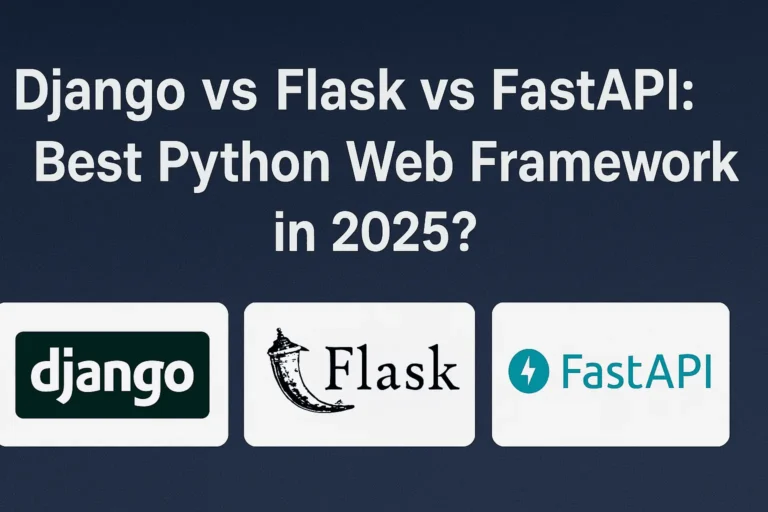
Comparison graphic showing Django, Flask, and FastAPI logos with the text 'Django vs Flask vs FastAPI: Best Python Web Framework in 2025?

Django vs Flask vs FastAPI: Best Python Web Framework in 2025?

When it comes to web development with Python in 2025, developers are spoilt for choice. Three major frameworks dominate the scene: Django, Flask, and FastAPI. Each has its strengths, weaknesses, and ideal use cases. But which one is the best for your project in 2025? In this article, we’ll explore the latest trends, performance benchmarks, community support, and real-world applications of each framework to help you make an informed decision. Django: The Full-Stack Django is a high-level Python web framework that promotes fast development and simple, practical design. It includes a variety of built-in capabilities, such as an Object-Relational Mapping (ORM), an admin interface, user authentication, and security protections. It’s an ancient framework—initial release date: 21 July 2005. What’s New in 2025: Advantages: Disadvantages: Use Cases: Flask: The Lightweight Microframework Flask is a simple and adaptable microframework. It provides the tools you need to quickly construct web apps without requiring a specific project layout or dependencies. What’s New in 2025: Advantages: Disadvantages: Use Cases: FastAPI: The Rising Star FastAPI is a modern, fast (high-performance) web framework for creating APIs in Python 3.7+ using standard Python type hints. It is an async-first framework developed on top of Starlette and Pydantic. What’s New in 2025: Advantages: Disadvantages: Use Cases: Conclusion All three frameworks are actively maintained and serve different purposes. In 2025, developers are moving toward FastAPI for performance and API-centric applications, but Django remains unbeatable for full-featured web apps, while Flask continues to be the go-to for lightweight projects.

Django vs Flask vs FastAPI: Best Python Web Framework in 2025? Read More »

Flat-style illustration showing a laptop with the Django logo, surrounded by Ubuntu, AWS, Nginx, and Gunicorn icons, representing Django project deployment on AWS EC2 with Ubuntu, Gunicorn, and Nginx.

How to Deploy a Django Project on AWS EC2 with Ubuntu, Gunicorn, and Nginx

Deploying a Django project to a live server can be challenging, especially for the first time. In this guide, I’ll walk you through a clear, step-by-step process to deploy your Django application on an AWS EC2 instance using Ubuntu, Gunicorn, and Nginx. Step 1: Install Required Packages Update the package and the Linux sudo apt update && sudo apt upgrade -y Install Python Nginx dependencies: sudo apt install python3-pip python3-venv python3-dev libpq-dev nginx curl git -y Step 2: Create a Virtual Environment and Activate python3 -m venv myenv source myenv/bin/activate Step 3: Clone or Upload Your Django Project Clone your project to AWS. Generally, the AWS user name is Ubuntu git clone https://github.com/ubuntu/yourproject.git cd yourproject Install all the project’s libraries: pip install -r requirements.txt Step 4: Configure Django Settings Add your EC2 IP or domain in ALLOWED_HOSTS like this ALLOWED_HOSTS = [‘aws-ec2-ip’, ‘yourdomain.com’] Step 5: Install PostgreSQL on Ubuntu sudo apt update sudo apt install postgresql postgresql-contrib -y Check PostgreSQL Status and Start PostgreSQL sudo systemctl status postgresql sudo systemctl start postgresql Switch to the postgres User and create a Database sudo -i -u postgres psql \l create database CREATE DATABASE ensdb; –set password ALTER USER postgres WITH PASSWORD ‘new_secure_password’; Exit psql and the user: \q exit Step 4: Migrate and collect static files python3 manage.py makemigrations python3 manage.py migrate #now collaect all static files python3 manage.py collectstatic Create a superuser for the django admin python3 manage.py createsuperuser Step 5: Install & Run Gunicorn pip install gunicorn Run Gunicorn and verify it’s working : gunicorn –workers 3 myproject.wsgi:application Test it by accessing http://your-ec2-ip:8000 if Gunicorn runs. Step 6: Run Gunicorn in the Background with Systemd Create a socket file sudo nano /etc/systemd/system/gunicorn.socket Please copy and paste the code below into the socket file and save it [Unit] Description=gunicorn socket [Socket] ListenStream=/run/gunicorn.sock [Install] WantedBy=sockets.target Now, create a service file sudo nano /etc/systemd/system/gunicorn.service Be careful with the socket file because your project depends on this configuration. Make sure your path to the project is correct [Unit] Description=gunicorn daemon Requires=gunicorn.socket After=network.target [Service] User=root Group=www-data WorkingDirectory=/home/ubuntu/project-dir/myproject ExecStart=/home/ubuntu/project-dir/env/bin/gunicorn \ –access-logfile – \ –workers 3 \ –bind unix:/run/gunicorn.sock \ myproject.wsgi:application [Install] WantedBy=multi-user.target myproject is inside the project dir, that’s why my env is inside it. For any error, comment me, and I will help you out Enable and start it: sudo systemctl start gunicorn.socket sudo systemctl enable gunicorn.socke Restart Gunicorn and check the status: sudo systemctl daemon-reload sudo systemctl restart gunicorn sudo systemctl status gunicorn Step 7: Set up Nginx We have already installed nginx, now it is time to configure it sudo nano /etc/nginx/sites-available/myproject server { listen 80; server_name mysite.com; location = /favicon.ico { access_log off; log_not_found off; } location /static/ { alias /home/ubuntu/project-dir/myproject/myproject/static/; } location /media/ { alias /home/ubuntu/project-dir/myproject/media/; } location / { include proxy_params; proxy_pass http://unix:/run/gunicorn.sock; } } Run the commands to create a symlink and allow nginx to fully sudo ln -s /etc/nginx/sites-available/myproject /etc/nginx/sites-enabled sudo nginx -t sudo systemctl restart nginx sudo ufw allow ‘Nginx Full’ Open the Nginx configuration file sudo nano /etc/nginx/nginx.conf Edit the user directive, Find the top line that looks like: user www-data; Change it to your desired user (e.g., ubuntu): user ubuntu; Check if your user has permission Ensure the user you set has permission to access: Test Nginx configuration sudo nginx -t Comment below if you have an issue with deployment, and I will help you Get Lifetime Free SSL: To get a free SSL certificate, create a Cloudflare account and configure your DNS records there

How to Deploy a Django Project on AWS EC2 with Ubuntu, Gunicorn, and Nginx Read More »

django

How to Install Django and Create Your First Project

Django is a powerful Python web framework for building Full Stack website quickly and easily.Moreover, it helps you write clean, maintainable code. In addition, it offers a simple admin panel to manage your site efficiently. In this blog post, I’ll guide you step by step so you can get started with Django and ultimately create your first project. To begin with, you need to install Python. Make sure to download it from the official website. During installation, don’t forget to check the option to add Python to your system PATH. Otherwise, you may face issues running Python from the command line. After that, verify your installation by running python –version. If everything is set up correctly, the terminal will show the version number. Now, let’s talk about Django apps. In simple terms, a Django app is a self-contained module within a Django project. Each app performs a specific function or delivers a particular feature. For example, you might have one app for user authentication and another for blog posts. Finally, always use a virtual environment for your Django projects. This way, you can manage dependencies easily and avoid conflicts between different projects. Prerequisites Let’s begin with some requirements Python 3.10 or later During installation on Windows, check the box that says:“Add Python to PATH”This ensures you can run python from the command line without extra setup. Always install Python 3.10+ (latest stable version). Python 2 is deprecated. A code editor like VS Code or PyCharm Step 1: Create a Virtual Environment For projects, always create a virtual environment: #For windows python -m venv “name of your environment” #for macOS or linux python3 -m venv “name of your environment” Step 2: Activate the Environment Note: Here, env is the name of the environment #for windows env\Scripts\activate #for macOS or linux source env/bin/activate Step 3: Install Django Open your terminal or command prompt and run pip install django #to check version django-admin –version Step 4: Create Your Django Project Run the following command to create a new project django-admin startproject myproject Navigate to your project folder: cd myproject Step 5: Now it’s time to create the App “To put it simply, a Django app is a self-contained module that handles a specific task or feature within a Django project.” “Essentially, a Django app is a modular component of a Django project that delivers a distinct feature or functionality.” It contains files like models.py, views.py, apps.py, admin.py, tests.py, etc. Can be reused across multiple Django projects. After creating it, you must add it to INSTALLED_APPS the list in settings.py. python manage.py startapp myapp Step 6: Add the app to the installed apps List Your installed app list looks like this: you need to add it there INSTALLED_APPS = [ ‘django.contrib.admin’, ‘django.contrib.auth’, ‘django.contrib.contenttypes’, ‘django.contrib.sessions’, ‘django.contrib.messages’, ‘django.contrib.staticfiles’, ‘myapp’, ] After that, create a urls.py file in your app. It’s not required to create this file in every app, but it’s a good practice. Keeping separate urls.py Files for each app make your project more organized and easier to manage. The project URLs file looks like this: #myproject urls.py from django.contrib import admin from django.urls import path, include urlpatterns = [ path(‘admin/’, admin.site.urls), path(”, include(‘myapp.urls’)), ] Step 7: Run the Development Server Use this command to start the server python manage.py runserver Open your browser and go to http://127.0.0.1:8000/ Step 8: Make Migrations Before running migrations, make sure to check your database settings in the project’s settings.py file. By default, Django uses SQLite, which is already set up for you and good for small projects. For PostgreSQL: #for windows pip install psycopg2 # for linux pip install psycopg2-binary configuration structure of the database for PostgreSQL DATABASES = { ‘default’: { ‘ENGINE’: ‘django.db.backends.postgresql’, ‘NAME’: ‘your_database_name’, ‘USER’: ‘your_postgres_user’, ‘PASSWORD’: ‘your_password’, ‘HOST’: ‘localhost’, ‘PORT’: ‘5432’, } } For MySQL: #install mysqlclient pip install mysqlclient MySQL configuration structure. DATABASES = { ‘default’: { ‘ENGINE’: ‘django.db.backends.mysql’, ‘NAME’: ‘your_database_name’, ‘USER’: ‘your_mysql_user’, ‘PASSWORD’: ‘your_password’, ‘HOST’: ‘localhost’, ‘PORT’: ‘3306’, } } Migrations in Django are used to create and apply changes to your database schema (like tables and columns) based on your models.py file. python manage.py makemigrations python manage.py migrate Step 9: Create Super User This is the final step to manage CRUD operations using Django’s admin panel. You need to create a superuser. Use the command below to create it: python manage.py createsuperuser Comment below if you doubt this section.

How to Install Django and Create Your First Project Read More »

Scroll to Top